Feature
Lead Status Tracking for Every Lead
See where each lead stands, how long it has waited and who moved it last, on a Kanban board, in a filtered list and in its history.
The short answer
How does lead status tracking work in AliveCRM?
Lead status tracking in AliveCRM uses the statuses you define. Each lead sits in one status, shown as a column on the Kanban board with a count and total value. A response timer shows how long a new lead has waited, and every status change is logged with who made it and when.
Good tracking answers questions before anyone has to ask them. A manager should be able to open one screen and see what is new, what is stuck and what is waiting too long.
Signs your tracking is not working
- New leads wait hours before anyone notices them.
- Leads sit in one stage for weeks without anyone seeing it.
- Status means different things to different reps.
- You learn a lead was lost only when you ask about it.
How It Works
Three Views of the Same Pipeline
Board, list and history, all built on your statuses.
Board
A Kanban Board With Counts and Value
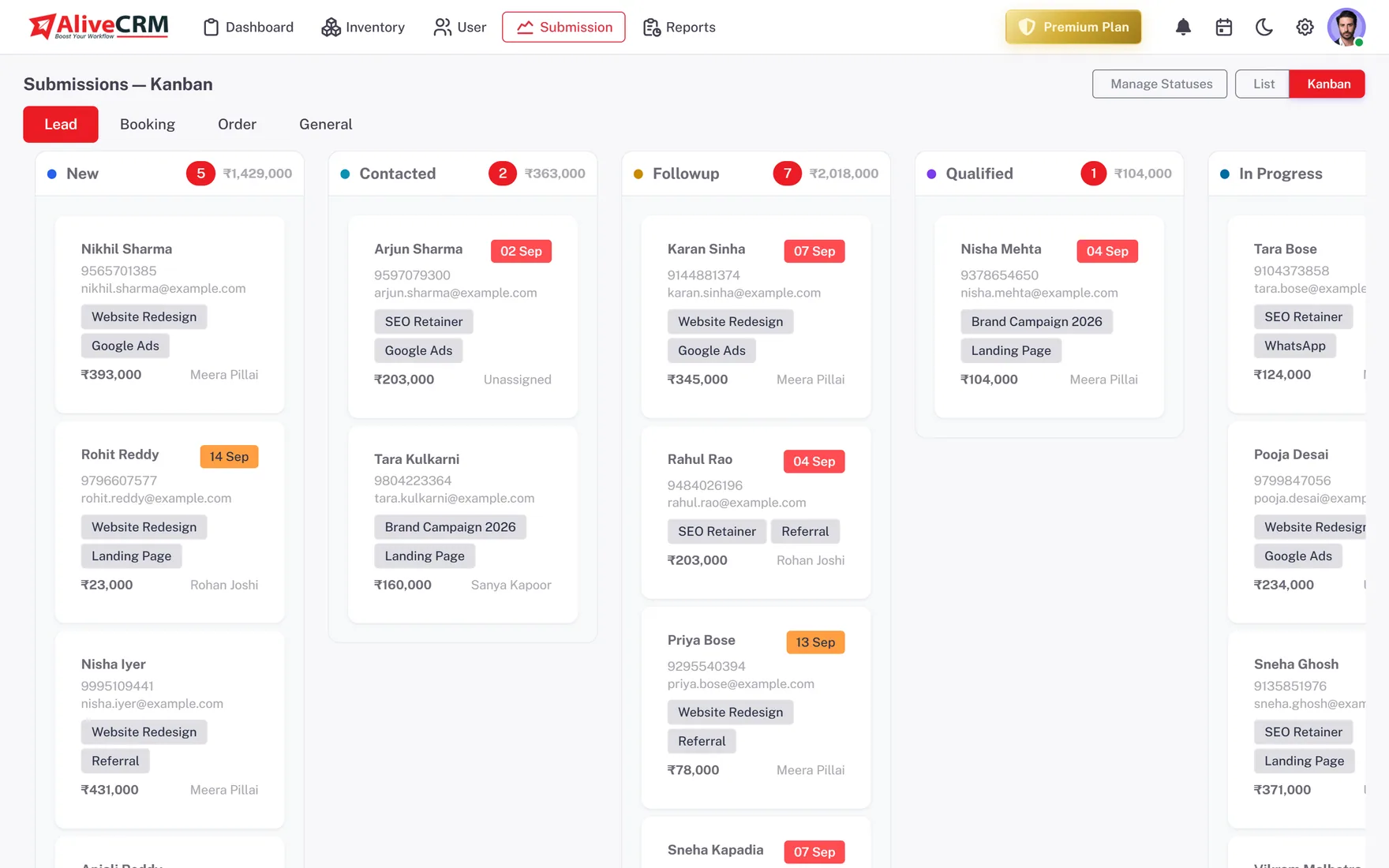
Each status is a column showing how many leads it holds and their total value. Drag a card to another column to change its status, or switch to the table view to work through leads in a list.
- One column per status
- Count and total value per column
- Drag a card to change status
Timer
A Response Timer on New Leads
A timer starts when a lead arrives. It turns orange after 15 minutes and red after 30, and stops when someone changes the status or calls or messages the lead. The dashboard also flags unassigned leads and overdue reminders.
- Orange at 15 minutes, red at 30
- Stops at first status change or contact
- Dashboard alerts for unassigned leads
Rahul Sharma
Example Technologies
Filters
Filter by Owner, Status or Source
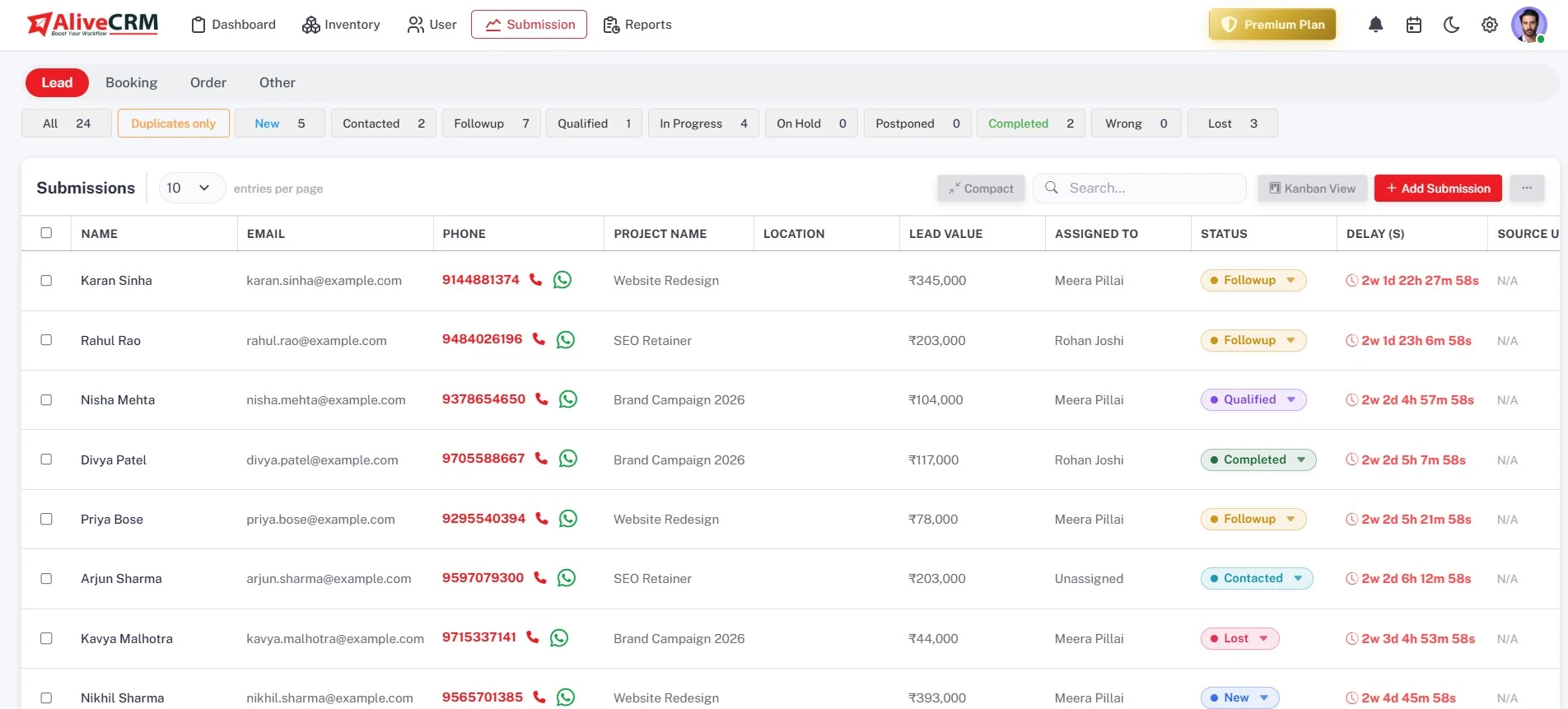
Filter the list by assigned user, status, source, product, project or service, name, email or phone. Status chips at the top give a quick count per stage, so you can see the shape of the pipeline before you open a single lead.
- Filter by user, status, source or item
- Search by name, email or phone
- Status chips for a quick count
History
A Full History Behind Every Status
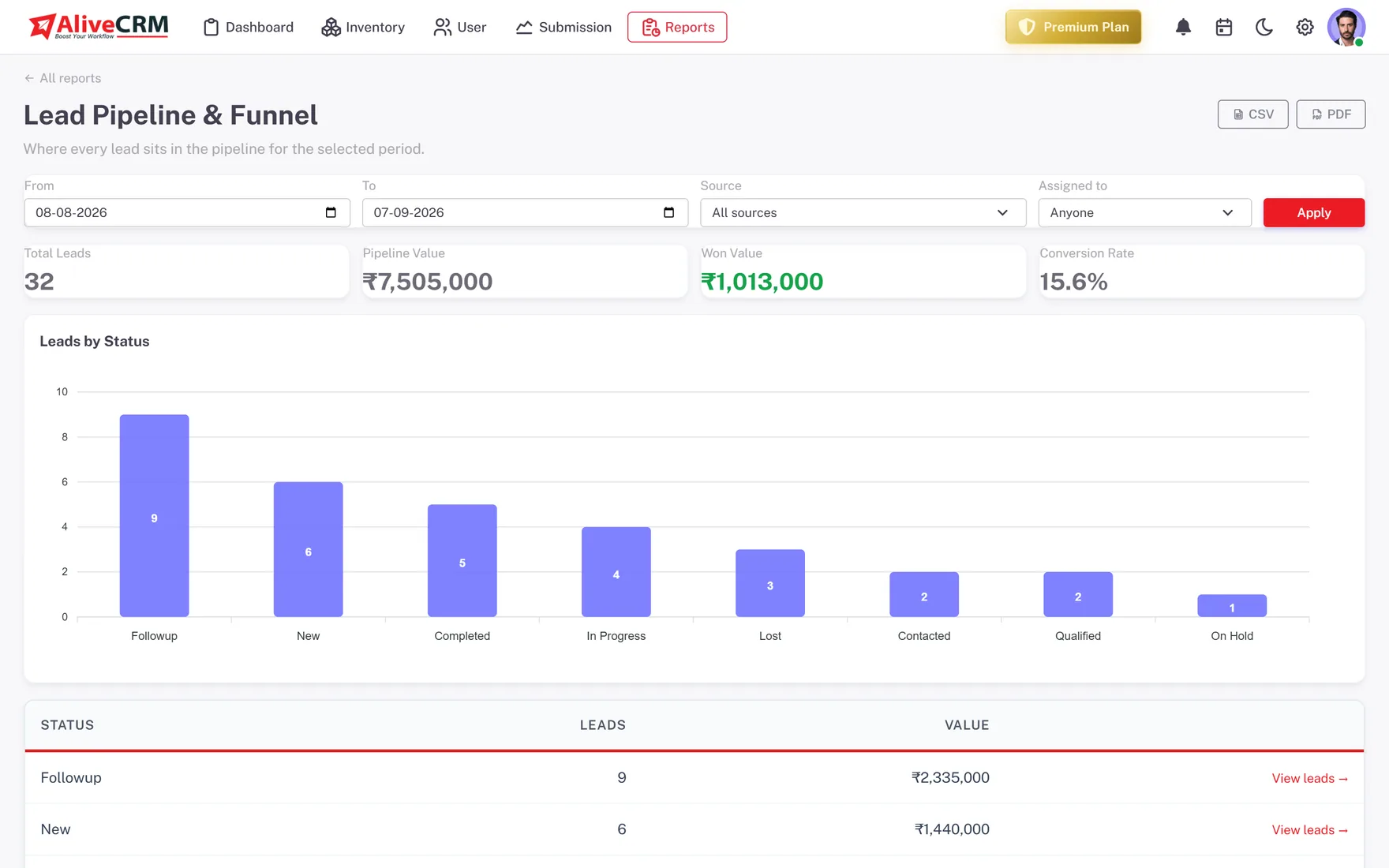
Every status change stores the previous status, the new one, who made the change and when. The Lead Pipeline report, on every plan, and the Conversion Funnel on Advance and Premium are built on the same statuses.
- From, to, who and when
- Lead Pipeline report on every plan
- Conversion Funnel on Advance and Premium
Who It Is For
Who Uses Lead Status Tracking
Sales managers
Open the board each morning to see what is new, what is stuck and which rep has the longest queue.
Teams with response targets
The colour-coded timer makes a 15 or 30 minute reply target visible to everyone, not just written in a policy.
Reps managing their own list
Filter to your own leads and work the board column by column, starting with the ones waiting longest.
Owners reviewing the month
Use status history and the pipeline report to see how many leads moved forward and where the rest stopped.
Honest limits
What Status Tracking Does Not Do
Statuses only move when your team moves them; AliveCRM does not change a lead's status on its own based on email replies or website visits. The response timer measures the first reply, not every reply after it. Use reminders and the Follow-up Compliance report for ongoing follow-up.
See Your Pipeline on One Board
Start a 7-day free trial and set up your first statuses.
FAQ
Frequently Asked Questions
Yes. The submissions area has a Kanban view with one column per status, each showing the number of leads and their total value. Drag a card to another column to change its status. A table view is there too, for searching and filtering long lists.
It starts when a lead is received and stops at the first status change or the first call or WhatsApp click on the lead. It turns orange after 15 minutes and red after 30. On the Advance and Premium plans, the Sales Rep Performance report shows the average response per user.
Yes. Every status change is recorded with the previous status, the new status, who made the change and when. It sits on the lead next to its notes, so anyone opening the lead can see how it moved and pick up from there.
The dashboard and the Lead Pipeline report are on every plan. The Advance and Premium plans add source performance, sales rep performance, follow-up compliance, form performance and the conversion funnel, all built on the same statuses your team uses every day.
Yes. The status history records when each change happened, so you can see how long a lead sat at each stage. If leads keep stalling at the same stage, that is the step to fix first, whether it is slow quotes, missed site visits or follow-ups that never happen.