Feature
A CRM Form Builder for Lead Forms
Design a lead form in minutes, preview it live, and connect every submission straight to the right product, project or service in your CRM.
The short answer
What is a CRM form builder?
A CRM form builder creates web forms whose submissions go straight into your CRM as leads, not into an inbox. In AliveCRM you drag fields onto the form, mark which are required, set the button and thank-you message, and link the form to a product, project or service and a lead source.
This page covers designing one form well. To see how to run a set of forms across a whole website, read our website forms page; for the wider picture of capturing leads, see lead capture.
What makes a lead form work
- It asks only for what the team will use on the first call.
- It looks like part of your site, not a bolt-on.
- It tells the visitor what happens next.
- It lands in the CRM with its source and offer attached.
How It Works
Build a Form in Four Steps
From a blank form to a live one on your site.
Fields
Drag Fields Onto the Form
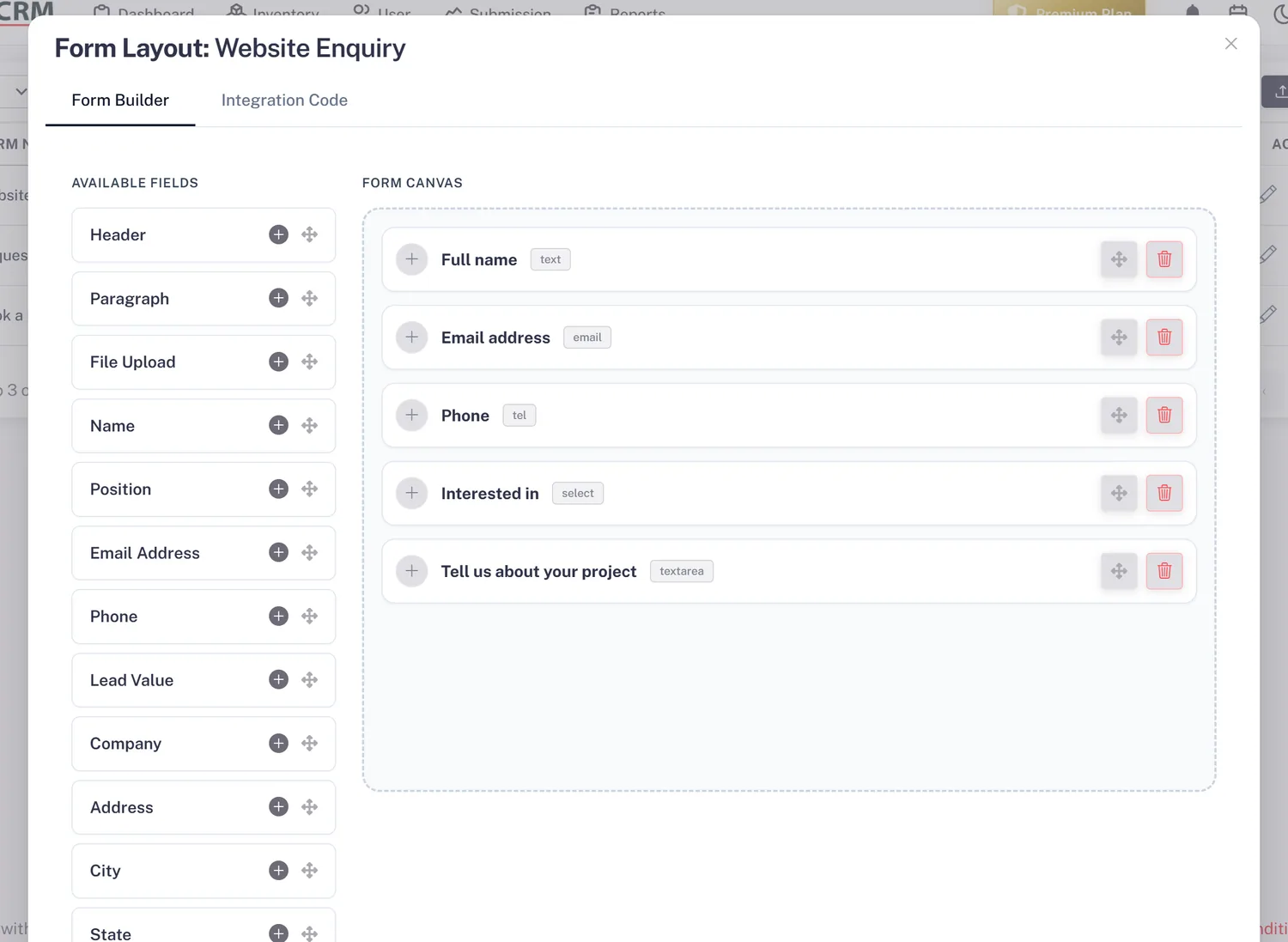
Choose from name, email, phone, company, position, address, city, state, country, zip, lead value, description, date and time, and file upload, plus headers and paragraphs for instructions. Mark each field required or optional and watch the live preview update.
- Drag-and-drop field placement
- Required and optional fields
- Live preview while you build
Style
Make It Look Like Your Site
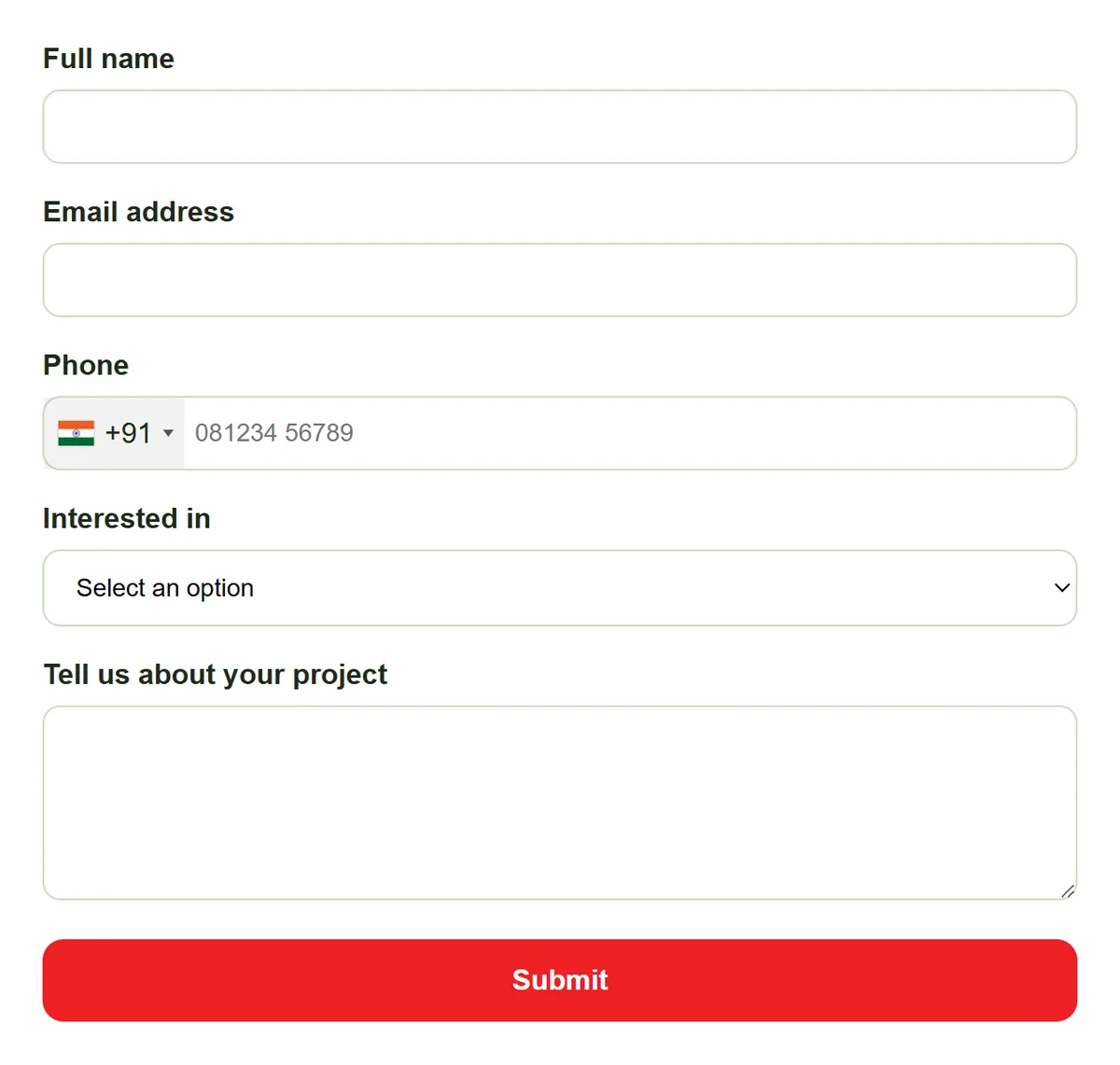
Set the button text and colours, and after a submission either show your own thank-you message or send the visitor to a page you choose. Add your Google Tag Manager code to the form so each submission can count as a conversion.
- Button text and colours
- Thank-you message or redirect URL
- Google Tag Manager code per form
Context
Link Each Form to an Offer
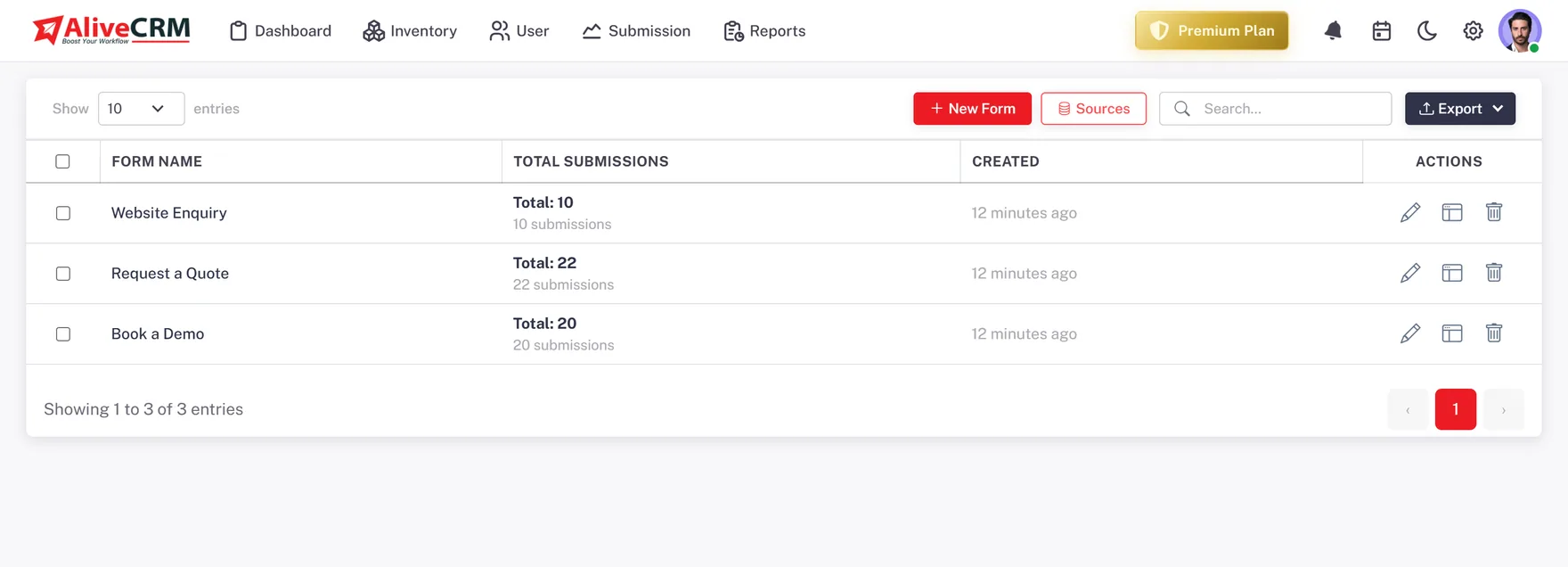
Each form belongs to one product, service or project and one lead source. Every submission arrives as a lead with that context and the page the form was on, so you can report on leads per item and per channel later.
- One item and one source per form
- Source page saved on every lead
- Separate forms per offer
Rahul Sharma
Example Technologies
Edit
Change the Form Without Touching Your Site
The embed script loads the form from AliveCRM, so you can edit fields, text and colours any time and the live form updates on its own. Check the result in the preview first, then publish.
- Edits go live without re-embedding
- Preview before publishing
- One script tag per form
Who It Is For
Who Builds Forms in AliveCRM
Marketers
Build a form per landing page, add the Google Tag Manager code, and track conversions without asking a developer.
Small business owners
Replace a contact form plugin with one that saves every enquiry as a lead you can assign and follow up.
Service providers
A quote request form per service, with a date and time field for preferred appointments and a file upload for photos.
Property sellers
An enquiry form per project, with lead value and preferred visit date, linked to the project from the first second.
Honest limits
What the Form Builder Does Not Do
The form builder is made for lead forms. It does not build multi-page surveys, quizzes, payment forms or conditional questions, and one form cannot cover several products at once. The forms do not include a captcha; submissions are rate-limited and checked for duplicates instead.
Build Your First Lead Form
Start a 7-day free trial and have a form live on your site today.
FAQ
Frequently Asked Questions
No. You build the form by dragging fields and setting options, then paste one script tag into your page. No HTML or developer is needed. If your website lets you add a block of custom code, or you use Google Tag Manager or WordPress, you can publish the form yourself.
It depends on your plan. The 7-day free trial includes one form, and paid plans raise the limit as you go up. The pricing page lists the current limits. Most teams run a form per key page or offer, so check the limit against how many pages you want to cover.
Yes. Each form can either show a thank-you message you write or redirect visitors to a URL you choose, such as a thank-you page that also records the conversion. The lead is created in AliveCRM either way, before the visitor sees the next page.
Yes. Each form has a setting for your Google Tag Manager code, so a submission can fire a conversion event for your ads and analytics. On the Advance and Premium plans, the Form Performance report also shows submissions and conversion per form inside AliveCRM.
Yes. Add the file upload field and visitors can attach a file, such as a brief, a drawing or a photo, along with their details. The file is saved with the lead, so whoever picks it up has everything the visitor sent in one place.