Feature
Lead Management Features in AliveCRM
A close look at the lead record: what it holds, how statuses work, where notes and history live, and how duplicates, imports and exports are handled.
The short answer
What lead management features does AliveCRM include?
AliveCRM's lead management features centre on one record per lead. It holds the submitted details, the source, the linked product, project or service, the owner, the status, notes and a full status history. Around it sit custom statuses per lead type, duplicate warnings, CSV import and export to Excel, CSV or PDF.
This page is the detail view. If you want the bigger picture of how leads move from capture to close, start with our lead management software page and come back here for specifics.
What breaks without these features
- Every rep uses different words for the same stage.
- Call notes live in personal notebooks.
- Nobody can say when a lead changed stage, or who moved it.
- The same customer appears three times under three spellings.
How It Works
The Life of a Lead Record
Everything that happens to a lead is written to the same record.
Record
One Record Holds Everything
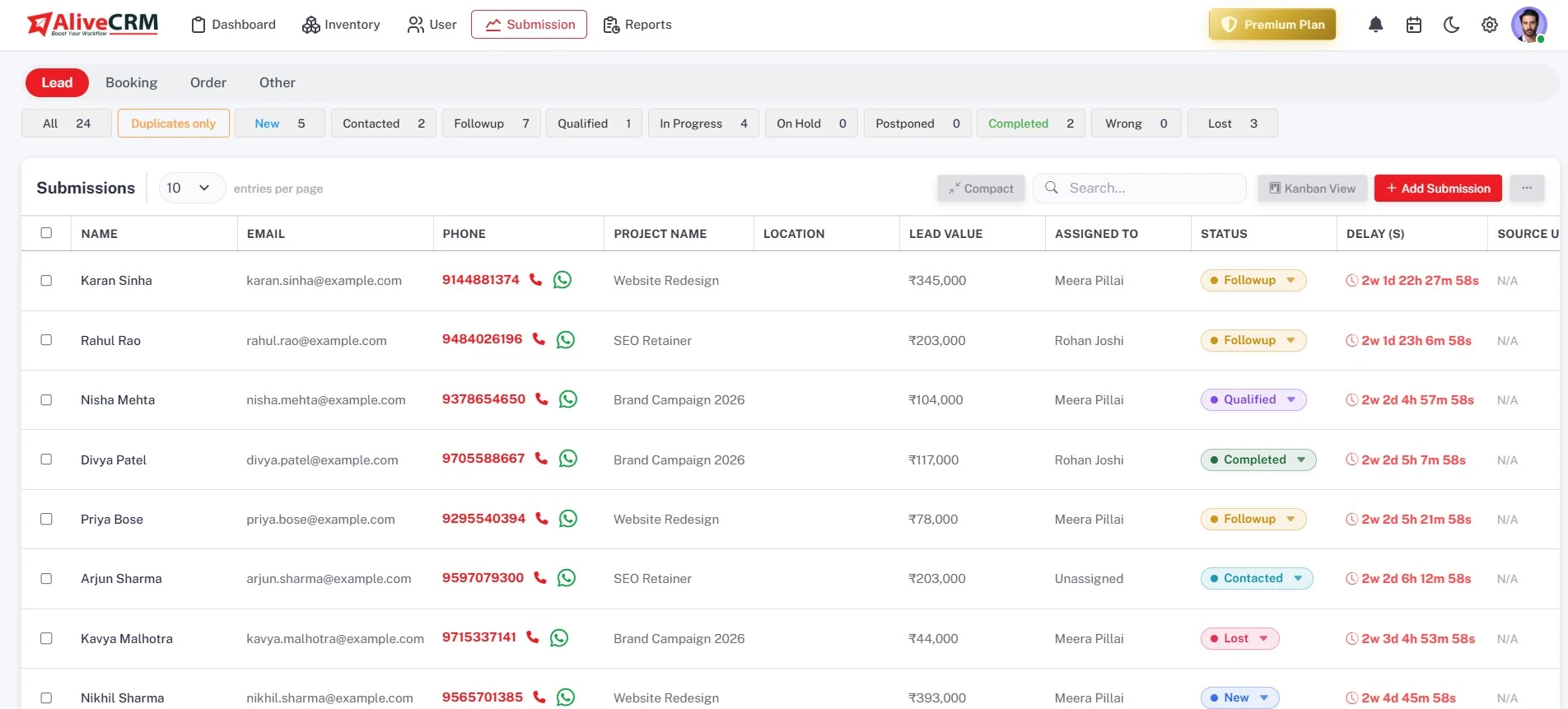
Each lead stores every field the visitor submitted, the product, project or service they asked about, the source and the page the form was on, plus the owner and current status. Anyone with permission can open it and pick up where the last person left off.
- Every submitted form field
- Linked product, project or service
- Source, owner and status in one view
Statuses
Statuses Per Lead Type
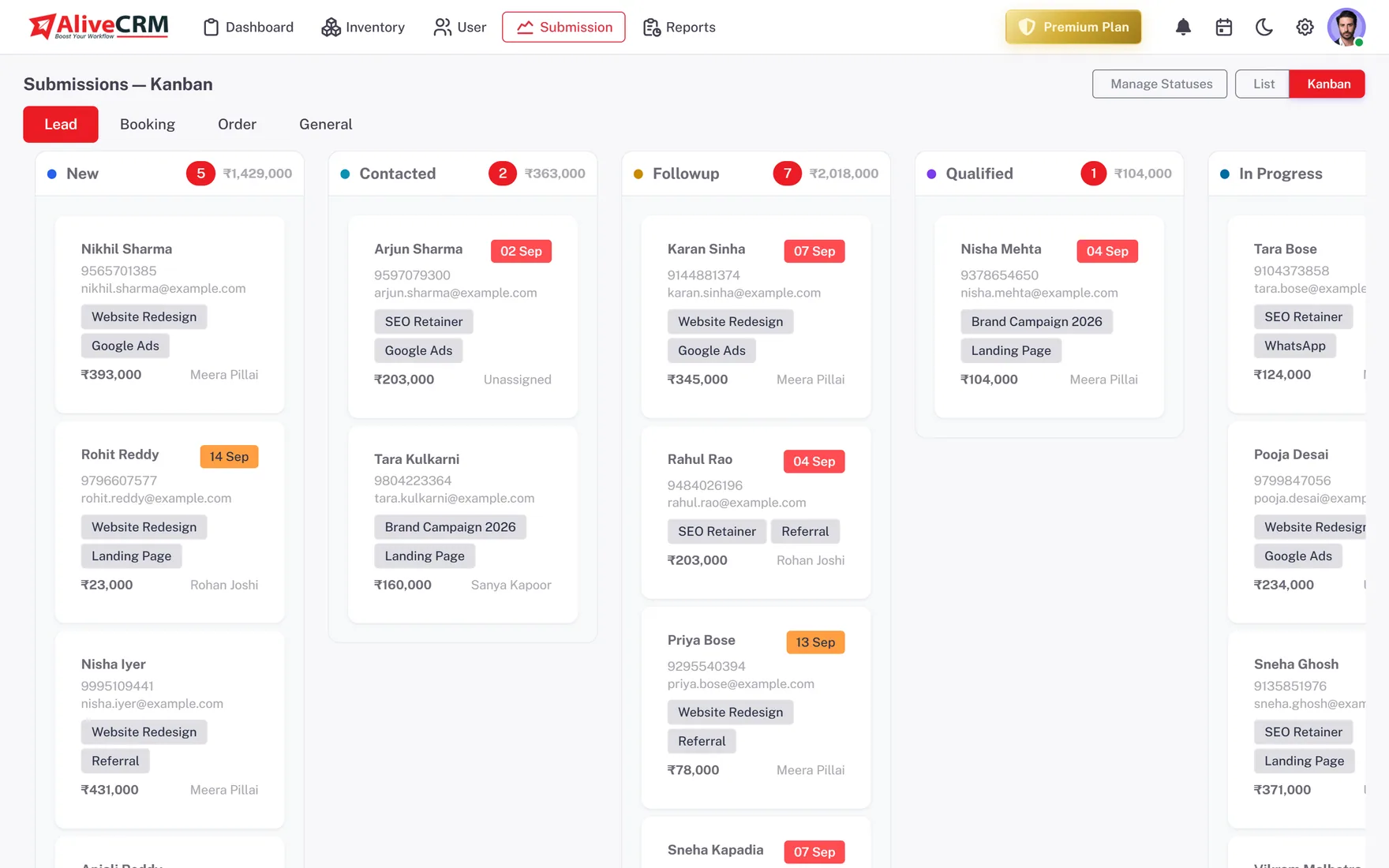
Set separate status lists for Lead, Booking, Order and General types, so an enquiry and an order each follow their own stages. Give each status a colour, choose the default for new leads, flag won and lost, and drag to reorder.
- Separate lists per lead type
- Colour, default, won and lost flags
- Drag to reorder
Notes and History
Notes and a Full Status History
Add as many notes as you need: what was said, what the customer wants, what to bring to the meeting. Admins choose whether a note is visible to other users. Every status change is logged with the old status, the new one, who changed it and when.
- Many notes per lead
- Admin control of note visibility
- From, to, who and when on every change
Rahul Sharma
Example Technologies
Data
Duplicates, Imports and Exports
Add a lead whose email or phone already exists and AliveCRM warns you; likely duplicates carry a badge and you can filter to see only them. Import up to 2,000 rows per CSV file with a results summary, and export to Excel, CSV or PDF.
- Duplicate warning, badge and filter
- CSV import with a results summary
- Export to Excel, CSV or PDF, or print
Rahul Sharma
Example Technologies
Who It Is For
Who These Features Help Most
Businesses selling several things
Products, projects and services each get their own statuses, so a booking is not forced through the stages of a sales enquiry.
Teams sharing leads
Notes and status history mean anyone can pick up a lead mid-conversation without calling the customer to start over.
Managers who need clean data
Won and lost flags on statuses keep conversion counts honest, and duplicate warnings stop one customer counting as three.
Teams moving from spreadsheets
Import your sheet as a CSV file, see which rows were created or flagged as duplicates, and fix errors before you start.
Honest limits
What These Features Do Not Cover
Duplicate detection warns and flags; it does not merge two records into one for you. Assignment by hand works one lead at a time. There is no AI lead scoring, so qualification is done through your statuses and categories.
See the Lead Record for Yourself
Start a 7-day free trial and open your first lead.
FAQ
Frequently Asked Questions
Yes. Statuses are set per lead type: Lead, Booking, Order and General. Each one gets a colour, and you choose the default status for new leads and which statuses count as won or lost. Reorder them by dragging, and every change of status on a lead is recorded.
When you add a lead whose email address or phone number already exists in your account, AliveCRM shows a warning. Likely duplicates carry a badge in the lead list, and a filter shows duplicates only, so you can review and clean them up in one place.
Yes. Import a CSV file of up to 2,000 rows, using the sample file as a guide to the columns. You get a summary showing how many leads were created, how many were duplicates and which rows had errors, so nothing goes missing quietly.
Admins decide whether each note is visible to other users. That lets a manager keep an internal comment private while the call notes stay shared with the team. Combined with roles and "self only" visibility, you control who sees which leads and which notes.
Yes. Export the lead list to Excel, CSV or PDF, or print it, from the same page you work in. Exports follow the filters you have applied, so you can export one rep's leads or one source without editing a spreadsheet afterwards.